
How to Add a Call Button to Your Google Business Profile
Want a call button on your Google Business Profile? Here's how to add one so customers can call you in one tap — plus what to do if it won't show.
YCYogesh ChauhanFounder, Surat City Web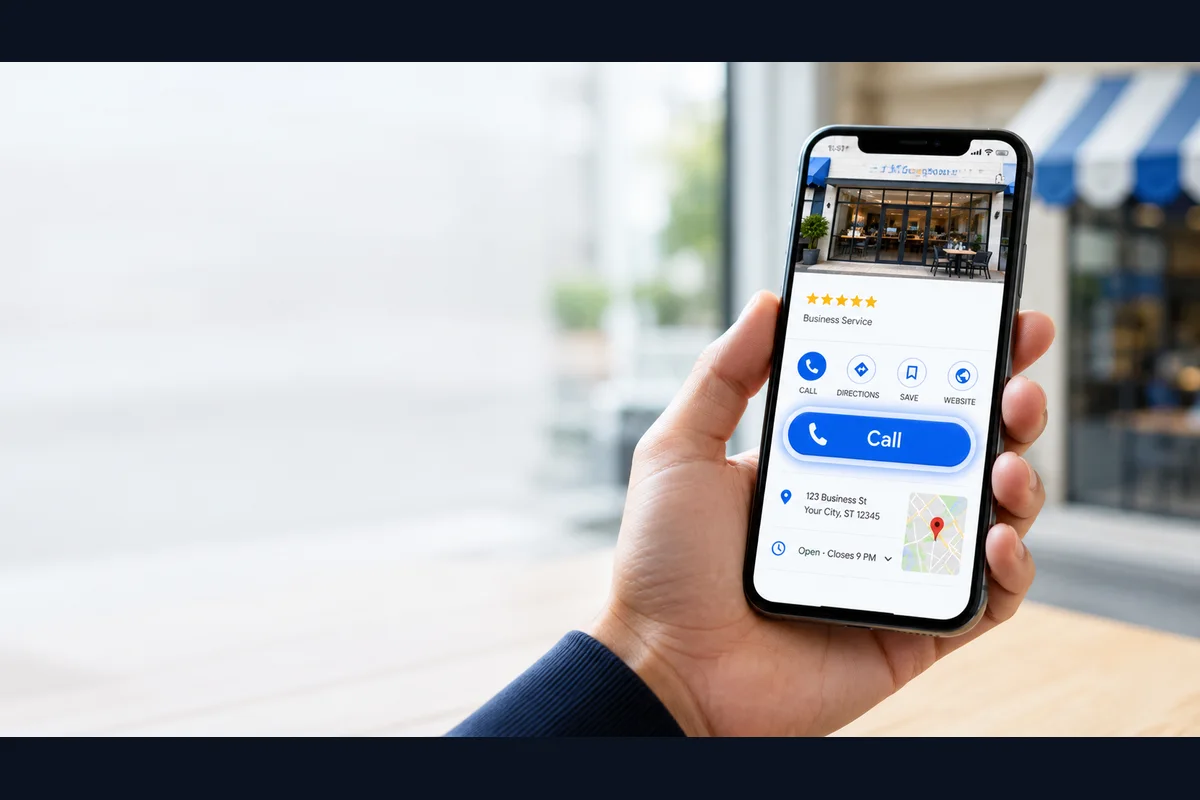
⚡Quick answer
To add a call button to your Google Business Profile, add a primary phone number in your profile and make sure it matches your website. Once your profile is verified and the number is accepted, the call button appears automatically on Google Maps and Search. If it still doesn't show, the number is likely flagged and needs fixing.
The call button is the most valuable thing on your Google Business Profile. On a phone, it lets a customer tap once and call you — no copying numbers, no friction. If your listing doesn't have a call button, you're quietly losing customers to competitors who do. Here's how to add one, step by step.
Key takeaways
- The call button appears automatically once you add a valid primary phone number.
- Your number must match your website and other listings to be trusted.
- Your profile must be verified for the call button to show.
- If it still won't appear, the number is likely flagged and needs a proper fix.
What is the Google Business Profile call button?
It's the “Call” action customers see on your listing in Google Maps and Search. Tap it on mobile and it dials your business directly. Google adds it automatically when you have a valid, verified phone number — you don't design it yourself, you just set up the number correctly.
How to add a call button, step by step
Add your call button in 5 steps
- 1
Open your profile
Go to your Google Business Profile (via Google Search, Maps, or business.google.com) and open the info/edit section.
- 2
Add your primary phone number
Enter your main business number as the primary phone. Use the number customers should actually reach you on.
- 3
Match it everywhere
Make sure the same number is on your website and other directories, so Google trusts it.
- 4
Verify your profile
An unverified profile hides key actions. Complete verification if you haven't already.
- 5
Test on a phone
Search your business on a mobile in incognito and confirm the Call button appears and dials correctly.
Why the call button sometimes won't appear
Adding a number usually works instantly. But sometimes the button still doesn't show, because:
Good to know
The call button isn't something you 'design' — it appears automatically when Google accepts your number. So fixing the button really means fixing the number and profile behind it.
Call button vs the website button — don't confuse them
Your Google Business Profile can show a few different actions: Call, Directions, Website and sometimes Message or Book. People often think their 'call button is broken' when actually the Website or Directions button is what they're looking at. The Call action is specifically the one that dials your phone. Make sure you're testing the Call button itself, and that your primary phone number — not just your website — is filled in, because the two are set up separately.
First, make sure you own (claim) the profile
You can only add or change your phone number if you actually manage the profile. Many businesses have a listing that Google generated automatically, which nobody has claimed. If that's you, claim it first: search your business on Google, look for 'Own this business?' or 'Claim this business', and follow the verification steps. Until the profile is claimed and verified in your account, you can't reliably add a working call button — so this is genuinely step zero.
Where the call button actually appears
It helps to know where customers see the call button, because it doesn't show everywhere. On a mobile phone — where the vast majority of local searches happen — the Call button appears prominently on your listing in both Google Maps and Google Search. On a desktop computer, customers usually see your number written out rather than a tap-to-call button, because you can't dial from most desktops. So when you test, always test on a phone. A number that looks fine on your laptop tells you very little about the mobile experience your customers actually get.
Adding your number from a phone vs a computer
You can manage your Google Business Profile from either a phone or a computer, and the steps are almost identical:
If you manage several locations, make sure you're editing the correct one — a common mix-up that leaves owners convinced 'nothing worked' when they simply updated the wrong listing.
Choosing the right phone number
Which number you use matters more than people expect. A few pointers:
One number, everywhere
Whatever number you choose, it must match the number on your website and your other listings. Consistency is what makes Google trust the number enough to show the call button.
Service-area businesses: adding a number without a public address
If you go to your customers rather than them visiting you — like a plumber, electrician or home tutor — you can still have a call button. Set your profile up as a service-area business, list the areas you serve, and hide your address. You still add a primary phone number exactly the same way, and the call button appears for customers in your service areas. You don't need a shopfront to let people call you in one tap.
Common mistakes when adding a call button
Most 'the call button won't work' problems trace back to a handful of avoidable errors:
Adding a call button for a brand-new business
If you've just started out and don't have a profile at all, the call button comes as part of setting up and verifying your Google Business Profile from scratch. You create the listing, add your category, address or service areas, hours and — crucially — your primary phone number, then complete verification. The call button appears automatically once you're verified. So for a new business, 'adding a call button' really means 'setting up a complete, verified profile'. Do that properly from day one and you'll never have to chase the button separately.
Give customers more than one way to reach you
The call button is the priority, but it works even better alongside other contact options. Many customers, especially younger ones, prefer to message rather than call. Consider enabling these so nobody slips away:
Think of the call button as the front door and these as the side entrances — the more easy ways in, the fewer customers you lose.
Managing a call button across multiple locations
If you run several branches, each location has its own profile and its own phone number. Add the correct local number to each listing rather than pointing them all at one central line — customers trust and prefer a local contact, and it keeps your data consistent per location. When you edit, double-check you're in the right location's profile, because updating the wrong branch is a surprisingly common reason owners think 'the change didn't work'.
A quick real-world scenario
Picture a new salon that just got listed. The owner added the number but customers said they couldn't call. The problem: the profile wasn't verified yet, so Google was holding the call action back. Once verification went through, the button appeared on its own — no other change needed. It's a reminder that adding the number is only half the job; the profile has to be claimed and verified for the button to actually show. Get both right and one-tap calling simply works.
How to keep your call button working long-term
Once it's live, a couple of minutes now and then keeps it that way. Every month or so, search your business on a phone in incognito and tap the button to confirm it still dials the right number. Keep your number identical across your website and directories, avoid unnecessary edits to core details, and never spin up a second profile for the same business. Most call-button failures are slow-building consistency problems, and this quick check catches them early.
Added your number but the call button still won't show? That usually means it's flagged at Google's end — and no amount of editing clears it. Our Google Business Profile call button fix gets one-tap calling working for a fixed price (currently 50% off), usually within 8–15 days. Send us your profile link on WhatsApp.
Yogesh Chauhan
Yogesh Chauhan is the founder of Surat City Web, a founder-led digital growth agency in Surat helping businesses across India get more calls, leads and customers from Google.
Frequently asked questions
Add your primary phone number in your profile, make sure it matches your website, and verify your profile. Google then shows the call button automatically on Maps and Search.
Related articles
How to Rank Higher on Google Maps: Get to the Top in 2026
A step-by-step guide to rank higher on Google Maps and reach the Local Map Pack — so your business shows first when customers search on Google or ask AI tools.
By Yogesh Chauhan
Google My Business Call Button Not Working? 2026 Fix
Google My Business call button not working? Whether it's missing, greyed out or calling the wrong number, here's why it happens and how to fix it fast.
By Yogesh Chauhan
Google Business Profile Phone Number Not Showing? Fix It
Google Business Profile phone number not showing? Customers can't call you. Here's why your number is hidden and how to get it back on your listing.
By Yogesh Chauhan